|
|
| |
Overview
LanceLicensing is a 100% pure Java application used to generate
license keys. It runs on any machine with a Java Runtime Environment
(JRE) installed and uses strong encryption and CRC mechanisms to make
sure that the generated license cannot be spoofed and that no one can
fake the license to avoid the specified licensing policies.
To make use of the "LanceLicensing" component, you first
need to generate a license key using the "LanceLicensing"
user interface. Our license key generator will generate a license
file (.llic) that you will distribute along with your application.
One such license key contains (in a strong encrypted manner)
information like: expiration date, application available feature list
and its own signature (used to avoid license key spoofing). Each time
your application is used, the license key is updated with the last
usage date. This information is then used when verifying the license.
On the other hand, your client application needs to embed our
component's code library and use its features through one single
interface the component provides: LicensingManager.
Usage
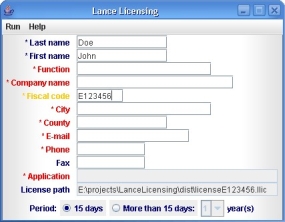
The main window of the graphic user interface is displayed below. The
required fields have red labels with a preceding „*”. The
optional fields as well as the correctly completed required ones have
blue labels. Inserting text in the data fields triggers the change of
color for the corresponding label. If an incorrect text has been
entered in a field, the corresponding label will change color to
orange.
There are several types of text allowed for the various data fields:
- names (i.e. a sequence of characters, ' ', '.' and '-') for the Last
name, First name, Function, Company name, City, and County
fields;
- phone numbers (i.e. one of the following patterns: "(<digits>)
<digits>" or "<digits> - <digits>"
or "<digits>", where <digits> represents a
sequence of digits) for the Phone and Fax fields;
- e-mail for the E-mail field;
- fiscal code (i.e. "<digits>" or "R<digits>",
where <digits> represents a sequence of digits) for the fiscal
code field;
- any input, for all the other fields.
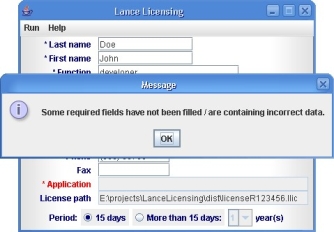
If you try to gnerate the license while some mandatory fields are
still uncompleted or contain incorrect text, an error message will
pop up, like the one in the next image.
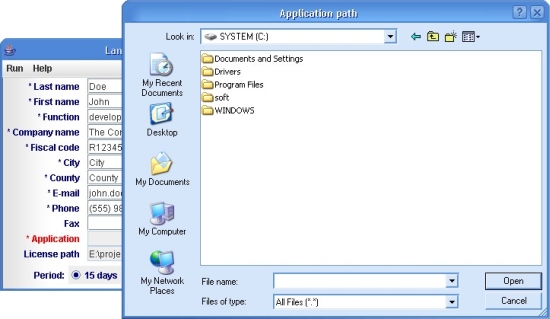
Choosing the application to apply the license on and the path for the
license file can be done in various ways. You can access these
functions from the menu under Run or you can click directly on
the corresponding field or label. For example, clicking on the
Application field will yield a file dialog window as depicted
in the next figure. You can select your application in this dialog.
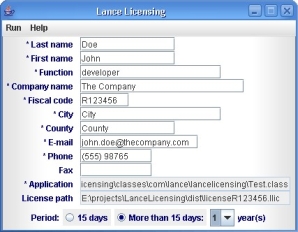
The period of time for which the license will be valid can be set to
15 days or to several years. By choosing the More than 15 days
option at the bottom of the screen, the years combo box becomes
active and you can chose the desired number of years in it.
After completeng all the fields and choosing the license validity
period, you can generate the license by choosing the Generate
license option in the Run menu. The license will be
generated and saved in the file specified in the License path
field.

|
|


